Agentic Engineering - Part 3
Software
Obsidian
Obsidian is a note-taking app supporting .md files and real-time rendering. A free account allows you to store your vaults in your iCloud. I use it in combination with Claude Code (and my cd-obsidian quick command). You can use Obsidian for multiple purposes: knowledge base, quick notes, future plans, writing, etc.
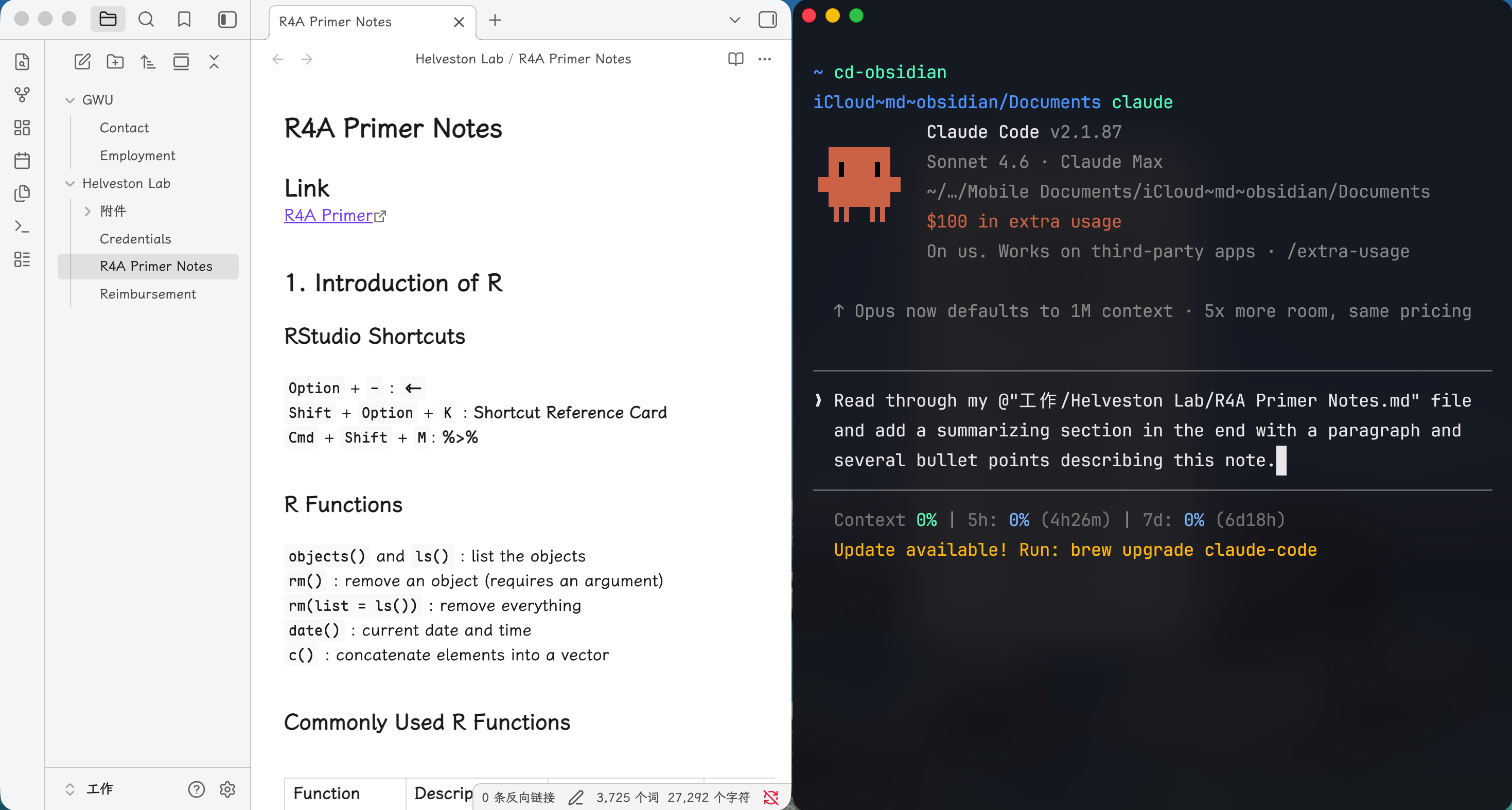
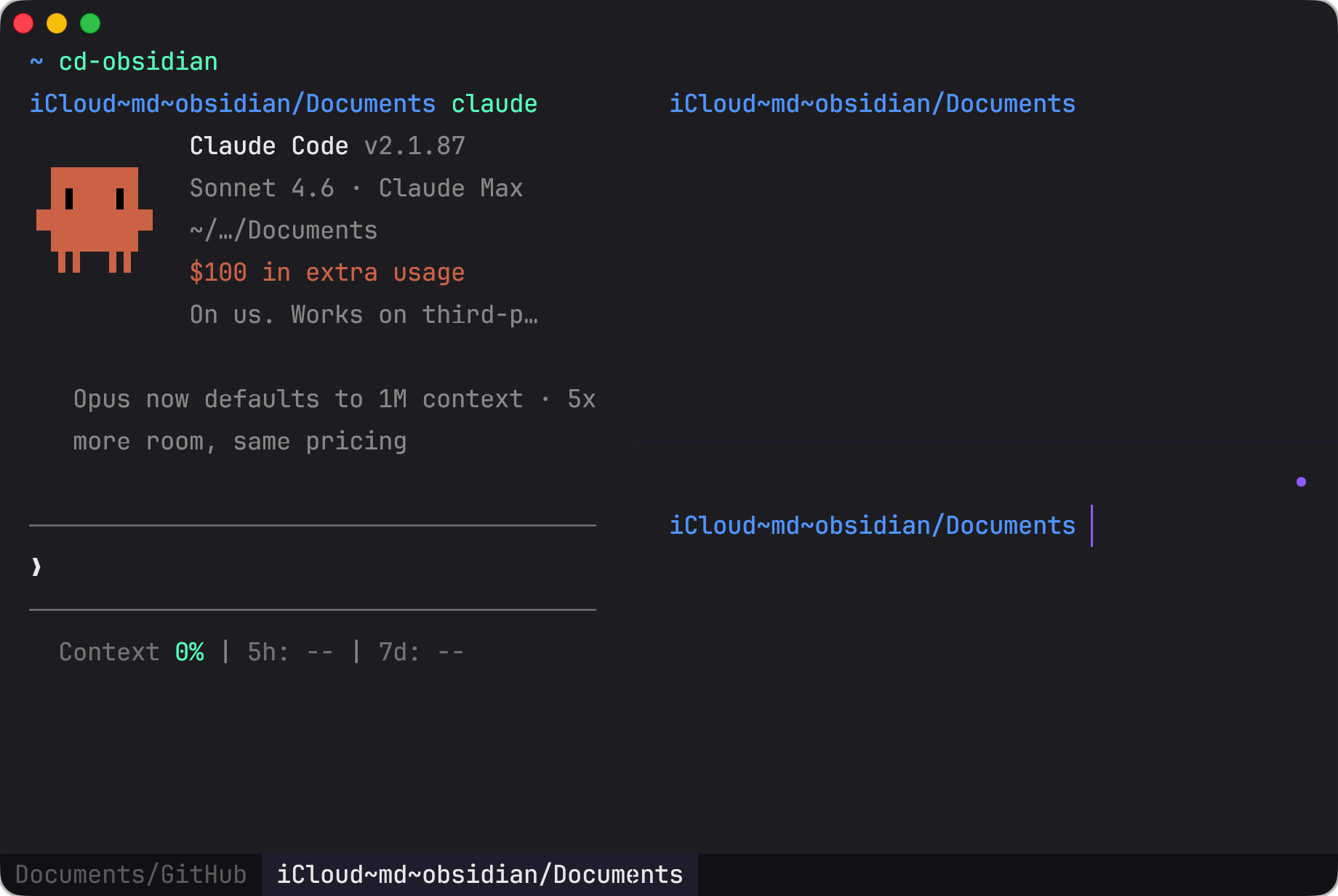
Above is a screenshot of my Obsidian workflow with Obsidian on the left and Claude Code on the right (summoned using the Kaku terminal). I use cd-obsidian to quickly jump into my Obsidian vault, and then I can talk with Claude Code to read my file(s), write new content, or restructure the current content. The .md file type is probably the easiest for LLMs to reach and modify, and since it’s all local (and no MCPs involved), it saves tokens and is more secure.
Spokenly
Spokenly is a tool that converts text to speech. It supports multiple languages and voices, making it a versatile choice for creating audio content from written text. I’ve been heavily using it both on my Mac and my phone. It largely replaces hand-typing and generates well-structured texts even though sometimes my prompts are a little off.
Positron
Positron is an IDE published by Posit. It’s especially handy for data science projects, but not limited to that. I write this blog post with Positron as well. It’s a VS Code-like IDE, supporting all features of VS Code, like extensions, shortcuts, file management, etc. The best part that I like it is that I can easily have my editor and terminal side-by-side, plus a few more functional pabels like console and data viewer.
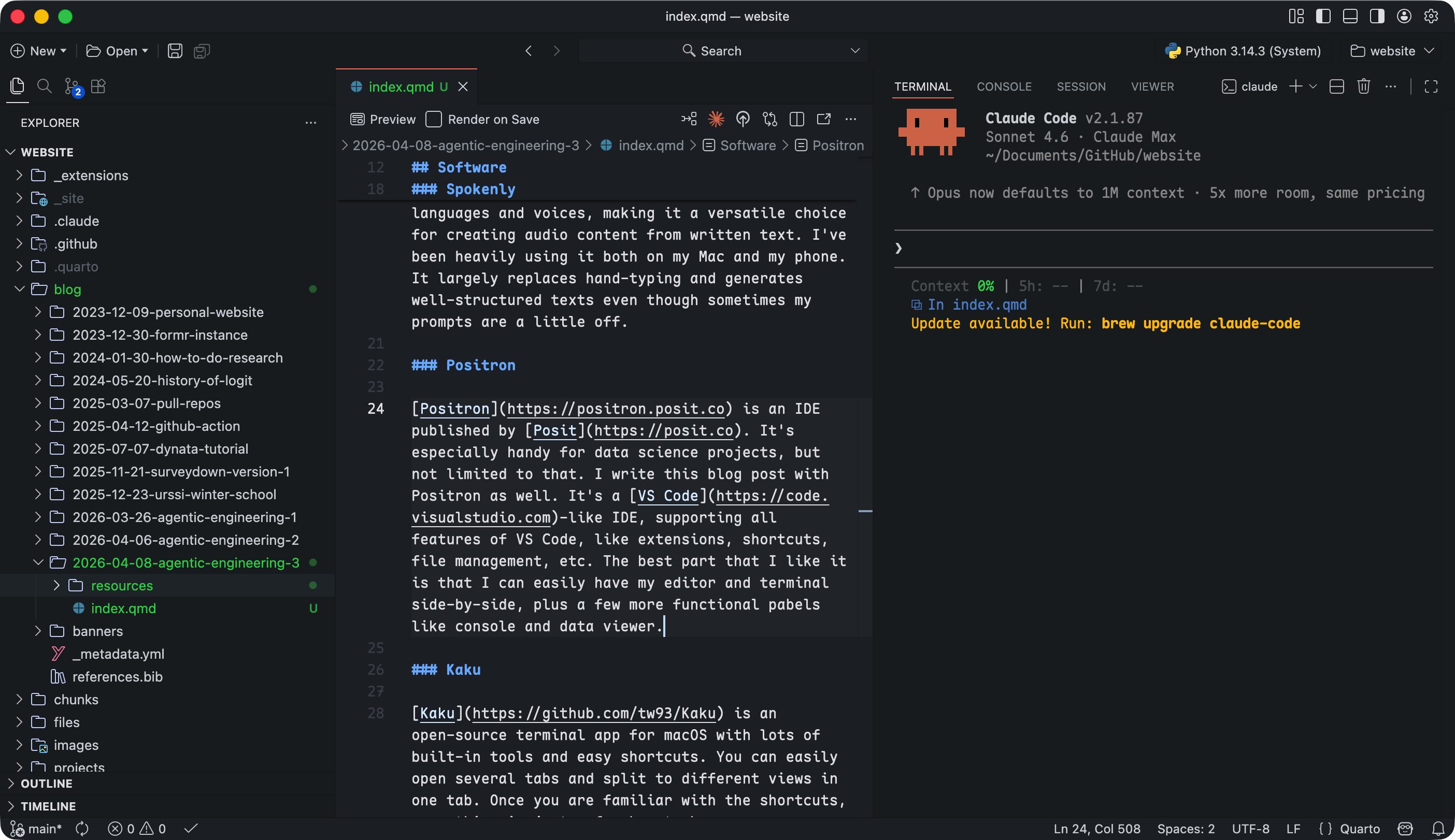
Above is a screenshot of my Positron layout, in which my file management and working space are on the left, and Claude Code is running in the terminal panel on the right.
Kaku
Kaku is an open-source terminal app for macOS with lots of built-in tools and easy shortcuts. You can easily open several tabs and split to different views in one tab. Once you are familiar with the shortcuts, everything is just a few keystrokes away.
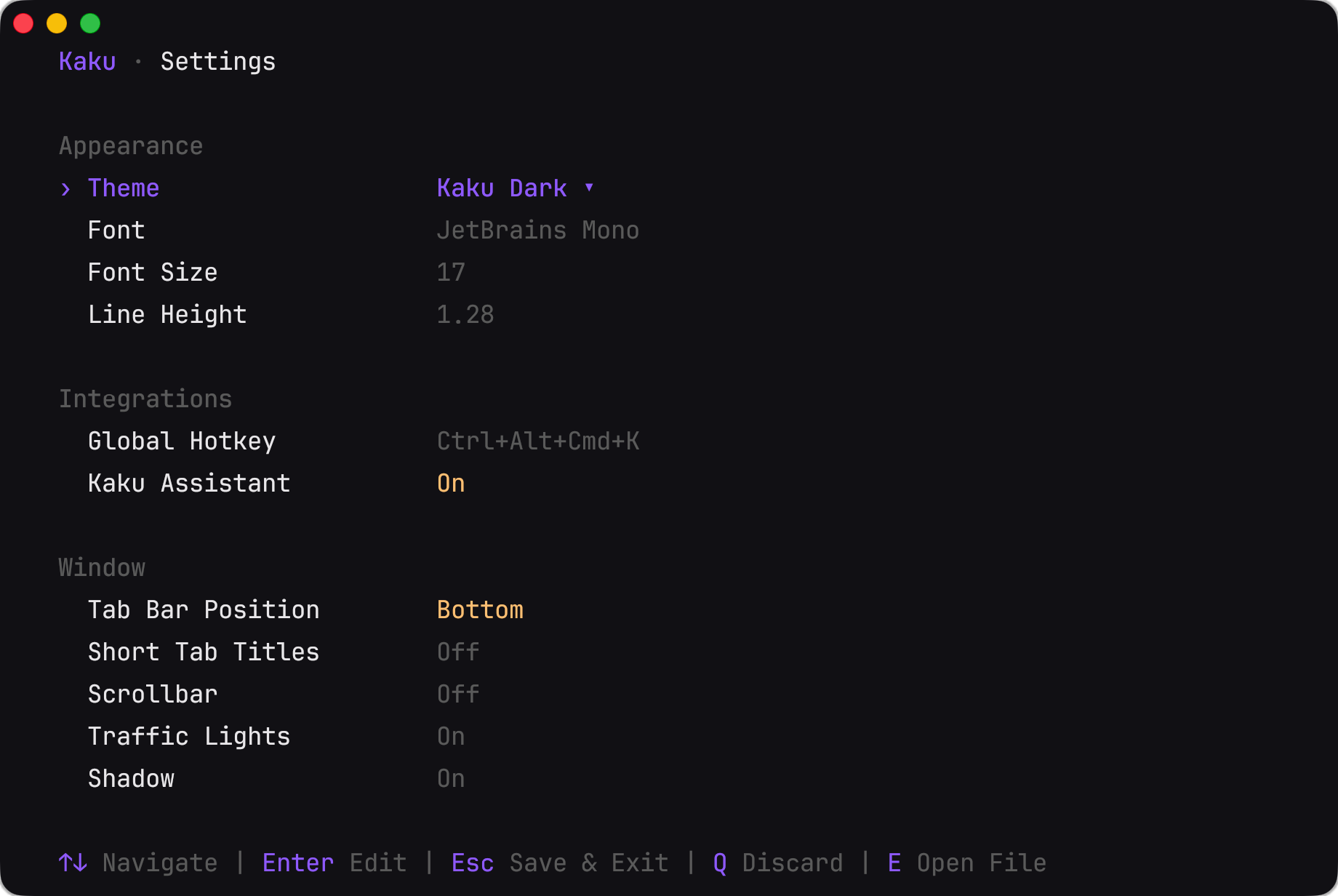
Kaku supports a wide range of settings and can be triggered using the kaku config command. You can also cooperate with Claude Code to directly edit the related setting files like starship.toml and yazi.toml. If you are not familiar with these files just ask Claude Code.
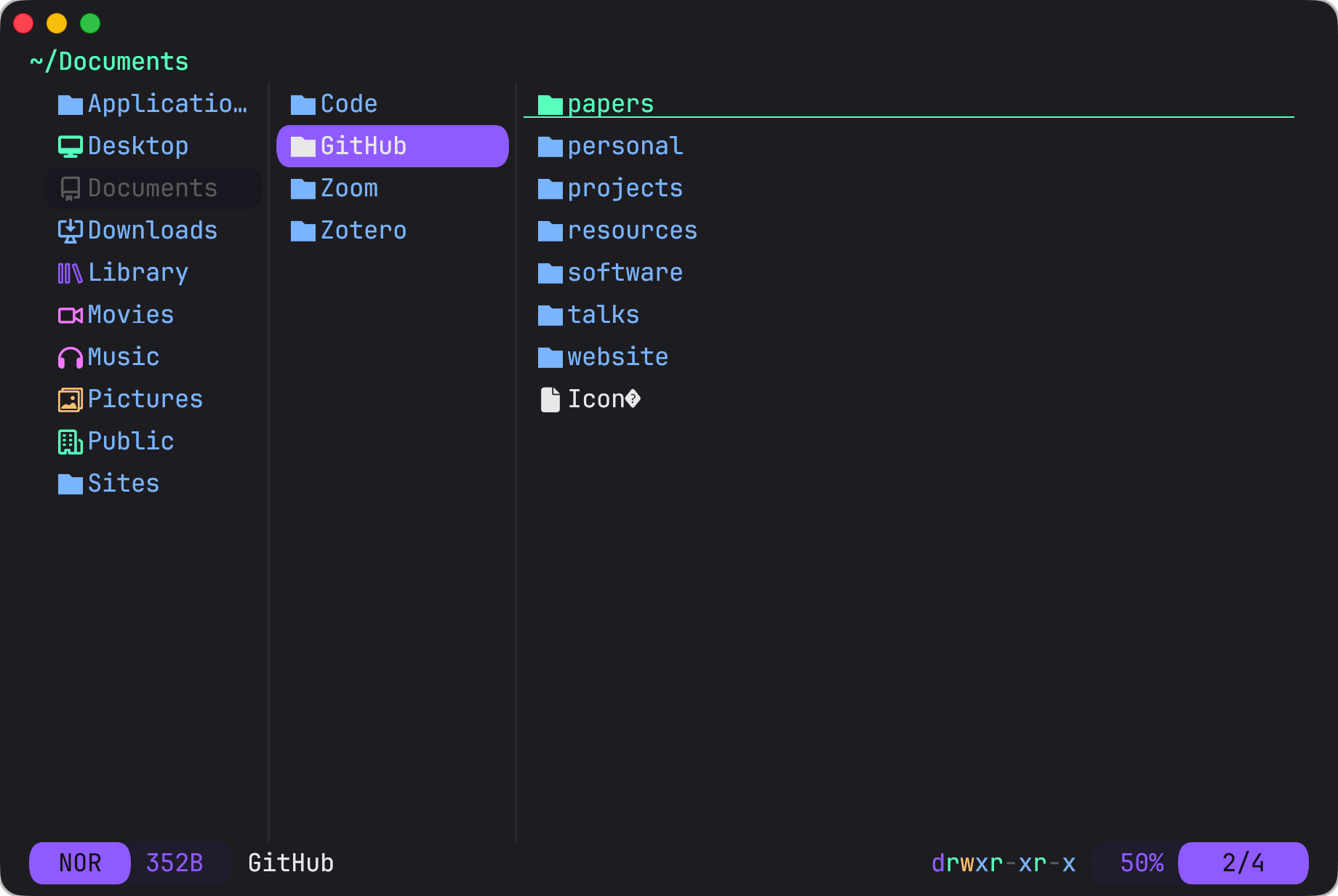
Kaku supports Yazi, a TUI for file management, triggered by the y command. The original Yazi plugin can only preview the directory and files. I did a customized command called yy to cd to the selected directory upon quitting Yazi. This can be easily done with Claude Code.
Kaku also supports multiple tabs and panels. In the above example, I opened an Obsidian tab and a GitHub tab, and have 3 panels in the Obsidian tab.
Extensions
Both Claude and Claude Code support extensions, including Plugins, MCPs (connectors), and skills.
- Plugins: marketplace bundles that extend Claude Code with new skills, MCP servers, and configuration. You install them via
/pluginand they are managed locally. - MCPs (connectors as in the Claude app): external servers that give Claude access to real-time tools and data, such as browsing the web, reading a calendar, or querying a database. MCPs can be standalone or bundled in plugins.
- Skills: slash commands (e.g.
/commit,/review) that encode reusable workflows as prompt templates. They are stored as.mdfiles and invoked by name to trigger a structured sequence of steps. Likewise, skills can also be standalone or bundled in plugins.
Plugins
The everything-claude-code plugin is perhaps the most popular one in the community. It bundles a lot of useful tools, including MCPs, skills, rules, hooks, etc. - pretty much every layers or components described in my previous posts.
The claude-plugins-official repo contains all the official plugins released by Anthropic. I installed claude-md-management, code-review, code-simplifier, and context7.
MCPs (Connectors)
The Excalidraw MCP lets Claude create and edit diagrams directly in Excalidraw — useful for quickly sketching system designs or flow charts without leaving your workflow.
The Figma MCP gives Claude read access to your Figma files, so it can inspect designs, extract layout details, and generate code that matches your UI specs.
The TinyFish MCP enables Claude to run browser automation tasks — filling forms, scraping pages, or interacting with web UIs — without you needing to write a script.
There are also simpler MCPs like Gmail and Google Calendar provided by Google that help fetch your emails and calendar events. With these MCPs, you can ask Claude Code to check your schedule, summarize your daily emails, make to-do lists, and so on.
These above MCPs are available for both Claude app and Claude Code.
Skills
While you install plugins, you might already have access to lots of skills. Skills might be auto-triggered when Claude Code detects the related scenario, or you can use the slash command to trigger them. For example, with the code-review plugin, you can trigger the /review skill to review your code and get suggestions for improvement, or you can just ask Claude Code to review your code and it will automatically trigger the skill.
@tw93 has recently released a collection of skills called Waza, which includes 8 skills: /think, /design, /check, /hunt, /write, /learn, /read, and /health.
In his blog post and his X posts, @tw93 explained that he has 2 principles for designing these skills:
- Less is more: Different from
everything-claude-code, which tries to be all-inclusive, Waza leaves more blank space and gives more freedom. Uses have to engage more with Claude Code. Also, since skills should be actively triggered (even though sometimes Claude Code can detect and auto-trigger), keeping the skill names simple, and decreasing the number of skills can make it easier to remember and use them. - Negative examples: LLMs usually tend to be broad, which makes lots of skills “generally useful” but lacking precision. A “not to” skill design can eliminate the false positives and make the skill more targeted. This is by far rarely been used in other skill designs, but I believe this is a very sharp insight and will make future skill design more effective.